
Choosing the right server is one of the decisions with the biggest impact on your project's performance. This guide focuses on the two key components - CPU and RAM - for both Linux and Windows environments.
The CPU: the server's brain
The CPU executes every instruction of your applications. When comparing servers, look at two factors:
1. Frequency and number of cores
- Frequency is measured in gigahertz (GHz) and indicates how many billions of cycles per second the processor can execute.
- Higher frequency means faster processing: a CPU running at 3.50 GHz processes instructions faster than one at 2.40 GHz, which matters for latency-sensitive tasks (web requests, database queries...).
- Additional cores let you run more tasks in parallel; frequency determines how fast each individual task runs.
2. Processor generation
- CPU technology evolves quickly: every generation improves per-cycle performance and power efficiency.
- Always ask your provider to specify the exact CPU model. A modern 1-core CPU can outperform a 10-year-old 4-core CPU thanks to architectural improvements.
Do not compare servers by "core count" alone: a VPS with fewer cores but a modern, high-frequency CPU usually performs better for most web workloads.
Shared hosting and Linux VPS
Understand your project's real usage
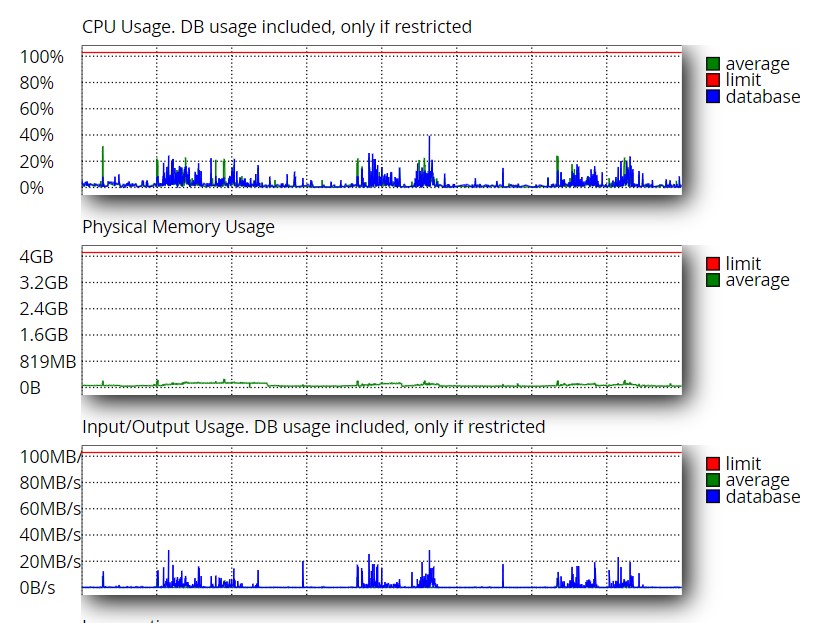
Resource usage varies enormously between projects: the site's code, its level of optimization and the traffic volume all play a role. Measure before over-provisioning.
Tools available on our hosting
- Real-time usage graphs: monitor your account's CPU, RAM and I/O usage.
- PHP X-Ray: a debugging tool that pinpoints bottlenecks and inefficiencies in your code.
- Caching systems: solutions such as LiteSpeed or WP Rocket reduce resource usage and improve response times.
Windows VPS
The operating system's own usage
Windows VPS are commonly used to run applications continuously. Keep in mind that the operating system itself consumes resources, including automatic updates, which require extra CPU.
Capacity planning per application
As a rule of thumb, allocate 1 CPU core per application (some may require more). Spreading applications across several VPS can improve both efficiency and security.
Monitor usage with the Task Manager
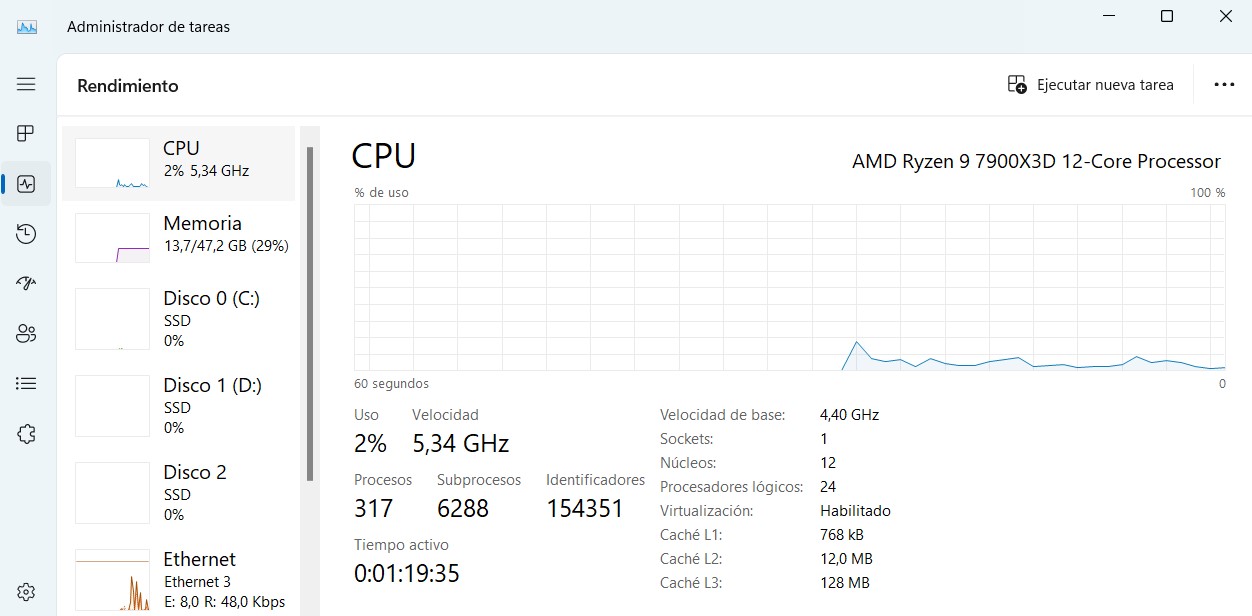
To check CPU and RAM usage on Windows, use the Task Manager: right-click the taskbar and select "Task Manager". You will see every application and process with its CPU and RAM percentage, which helps identify applications consuming a disproportionate amount of resources.
Not sure which plan fits your project? Tell us what it is about and we will recommend the best option, no strings attached.